Meeting Recorder User Guide
Learn how to record meetings, customize settings, and share recordings with your team.
How to record a meeting
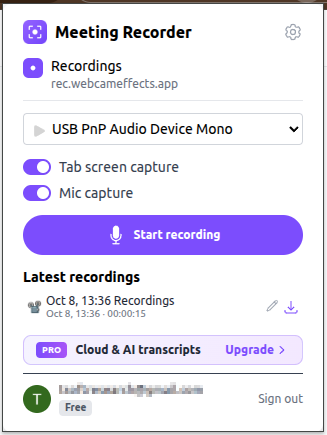
1. Open your meeting in Zoom, Microsoft Teams, Google Meet, or any other website.
2. Click the puzzle icon in the top-right corner of your browser and select Meeting Recorder.
3. Choose your microphone and turn on "Tab screen capture" and "Mic capture".
4. Click "Start recording". Your latest recordings appear in the extension, ready to rename or download.
Customize your settings
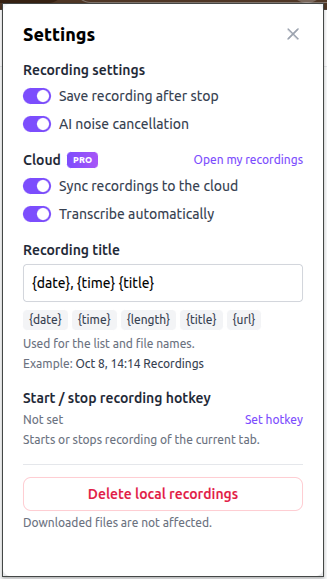
Click the gear icon in the extension to open the settings page:
• Turn on AI noise cancellation to remove background noise while recording.
• Build recording and file names from placeholders: {date}, {time}, {length}, {title}, {url}.
• Set a hotkey to start or stop recording of the current tab.
• With Pro, sync recordings to the cloud and transcribe them automatically.
Cloud recordings and sharing with Pro
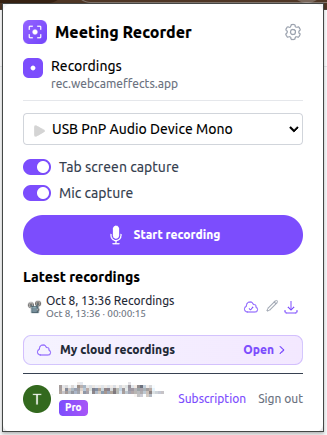
With Pro, every recording is uploaded to your private cloud and transcribed automatically.
To share a recording, click "Open" next to "My cloud recordings" in the extension, choose a recording and click "Share". Your colleagues get a link to the recording with its transcript.
Pro includes 50 GB of cloud storage and 20 hours of transcription every month.
Brauchen Sie Hilfe oder haben Sie Vorschläge?
Unser Support-Team ist hier, um zu helfen! Kontaktieren Sie uns unter [email protected]