 Update
Noise Cancelling App — Premium Plans
Last updated: October 12, 2026
We’re always working to make Noise Cancelling App better. To support these improvements, Premium plans are now available.
Noise Cancelling App will continue to be free — AI noise cancellation for your microphone stays available to everyone.
What’s in Premium
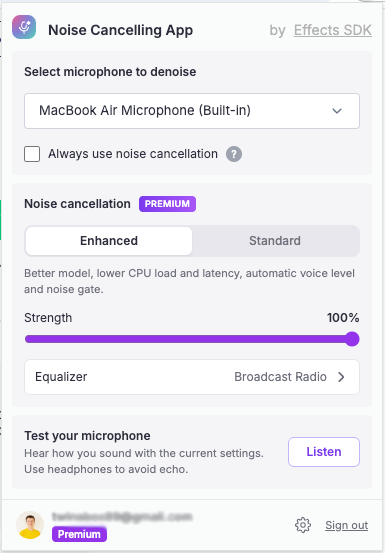
Premium unlocks the new noise cancellation panel right in the extension:
Enhanced AI model
A better model for cleaner voice, with lower CPU load and latency.
Auto gain & noise gate
Your voice level is adjusted automatically, and the noise gate keeps pauses quiet.
Strength control
Adjust how strongly background noise is removed.
Microphone test
Hear how you sound with the current settings before you join a call.
Equalizer
Presets like Broadcast Radio to shape the sound of your voice.
No ads
A clean extension with nothing between you and your calls.
Free vs Premium
Pricing
Annual plan
$4.95 / month
$59.95 billed annually — save $59.45!
Monthly plan
$9.95 / month
Billed monthly
How to remove background noise
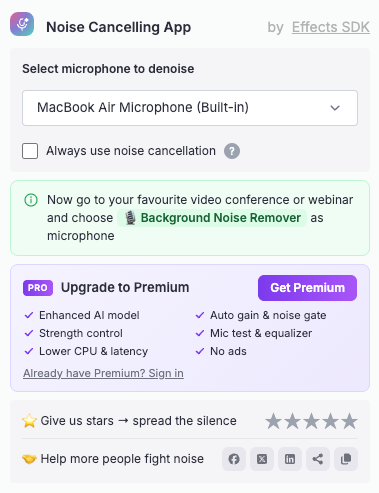
- 1 Click the puzzle icon in the top-right corner of your browser and select Noise Cancelling App.
- 2 Select the microphone you want to denoise. Enable “Always use noise cancellation” to keep it on for every call.
- 3 Open your video conference, webinar, or recording website.
- 4 In its audio settings, choose “Background Noise Remover” as your microphone.
Already have Premium?
If premium features are not unlocked in the extension, open it and click “Already have Premium? Sign in” using the same email you paid with.
Noise Cancelling App is not working properly?
- Make sure “Background Noise Remover” is selected as the microphone in your meeting or recording app.
- Check that the correct microphone is selected in the extension.
- Confirm that the website has permission to access your microphone.
- Use “Test your microphone” in the extension to hear how you sound (use headphones to avoid echo).
- Refresh the page or rejoin the meeting.
Need help upgrading? Contact Us
Thank you! Your support helps us keep building better tools for you.

Need assistance or have suggestions?
Our support team is here to help! Contact us at [email protected]