LookGood Live User Guide
Learn how to use LookGood Live, solve common issues, and get support.
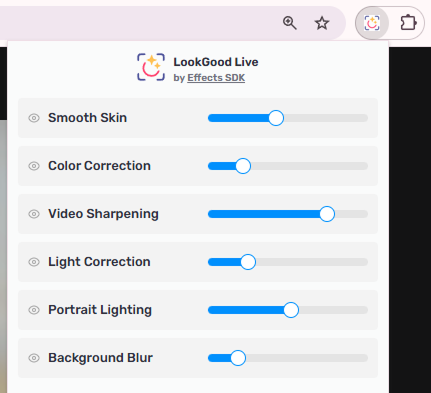
How to apply AI effects in LookGood Live
1. Open the website where you plan to use the extension (for example, start a meeting, recording, or live stream).
2. Make sure the webpage has access to your webcam.
3. Click the puzzle icon in the top-right corner of your browser and select LookGood Live to activate the extension.
4. Adjust the intensity of the effects to achieve your preferred look. Your settings will be automatically saved and applied in future video sessions.
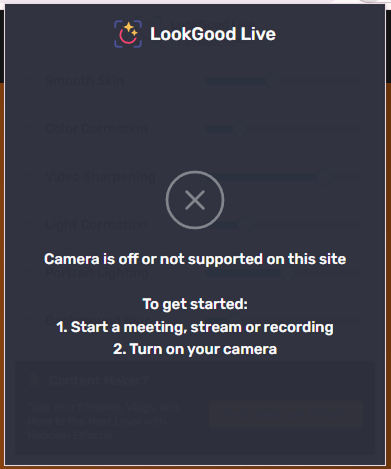
If LookGood Live is not working properly, try the following:
1. Make sure you are using the plugin on a website that supports video meetings, recording, or live streaming.
2. Check that your camera is turned on.
3. Confirm that the plugin has permission to access your camera.
4. Refresh the page or start a new meeting, recording, or streaming session.

需要帮助或有建议?
我们的支持团队在这里帮助您!联系我们 [email protected]