Blog
Easy webcam background blurring for Effortless Communication
Elevate Your Video Calls with Webcam Filters: Introducing The AI Webcam Effects
Ideas for your virtual backgrounds
How to Look Better on Video Calls in Zoom, Google Meet, Skype, Microsoft Teams, and Others
Better Your Online Meetings with AI Webcam Effects
Modify Your Video Calls with Custom Backgrounds with AI Webcam Effects
How to upgrade Home Office. Transform Your Workspace with AI Webcam Effects
Boosting Confidence: Leveraging Beauty Filters in AI Webcam Effects for Video Calls
Best Chrome Extensions for Google Meet
Best Audio Tools for Google Chrome

Best Chrome Extensions for Google Meet
Google Meet is one of the best free apps for online meetings and conferences. While it includes several useful built-in features, certain advanced capabilities are missing or locked behind a Google Workspace subscription, which comes with a significant price tag.
Here are a few Chrome extensions to make your meetings more comfortable, whether you are a participant or a host. Our team uses these extensions, and we recommend them as they significantly simplify and improve the meeting experience.
Contents:
- Video improvement and screen sharing – AI Webcam Effects
- Advanced microphone noise cancellation - Noise Cancelling App
- Audio noise reduction - Relax Your Ears
- Record Meetings on Zoom, Microsoft Teams, Google Meet & more
- Improved camera and demonstration of objects – Phone as Webcam
- Enhanced capabilities and convenience – Google Meet Enhancement Suite
- Managing large conferences – Google Meet Breakout
- Managing presence and participation – Google Meet Attendance List
- Extending interaction – Annotate: Web Annotations with Screen Sharing
Video improvement and screen sharing–AI Webcam Effects
https://chromewebstore.google.com/detail/iedbphhbpflhgpihkcceocomcdnemcbj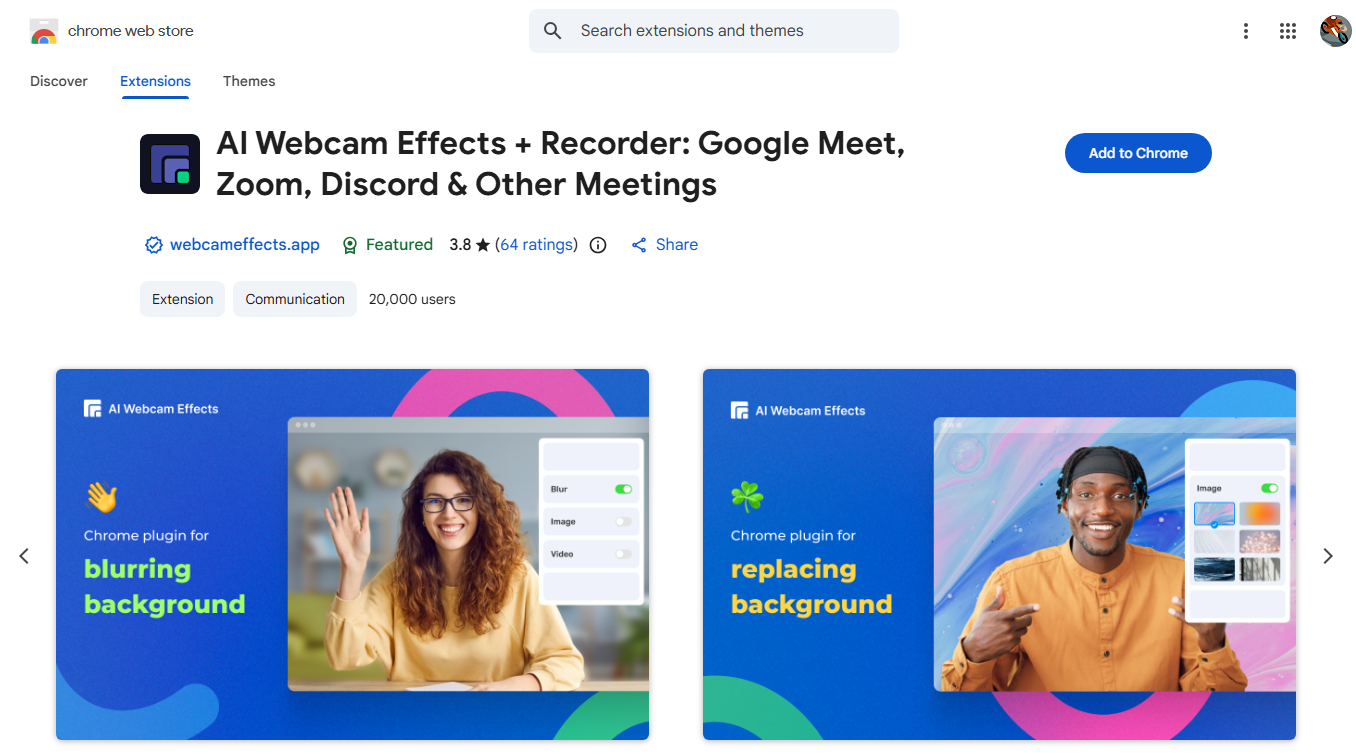
We rarely get to join a virtual meeting from the perfect setting–poor lighting and video quality, a cluttered background, an awkward camera angle, and personal items in view–all of these can make us want to turn off our camera. Of course, Google Meet has its own tools to handle these issues, but their customization options are limited and scattered throughout the app. AI Webcam Effects solves all of these challenges at once. Powered by the Video Effects SDK, this extension accurately detects the person in the frame and allows you to significantly improve your video quality, hide the background, and access a variety of advanced features.
Main features:
Highly customizable background blur
Background replacement with images, colors, or videos
Skin smoothing, video sharpening, and other visual enhancement options
Screen sharing as the background
Extensive color correction and low-light compensation options
Customizable zoom and automatic framing
Captions, customizable reactions, and GIFs
Pricing:
Free – with the watermark and only essential features
Subscription – from $7.95, with weekly free trial
Free – with the watermark and only essential features
Subscription – from $7.95, with weekly free trial
Note:
To ensure a smooth experience, we recommend using modern hardware, as running multiple high-quality video effects in real time can be resource-intensive.
To ensure a smooth experience, we recommend using modern hardware, as running multiple high-quality video effects in real time can be resource-intensive.
Advanced microphone noise cancellation – Noise Cancelling App
https://chromewebstore.google.com/detail/njmhcidcdbaannpafjdljminaigdgolj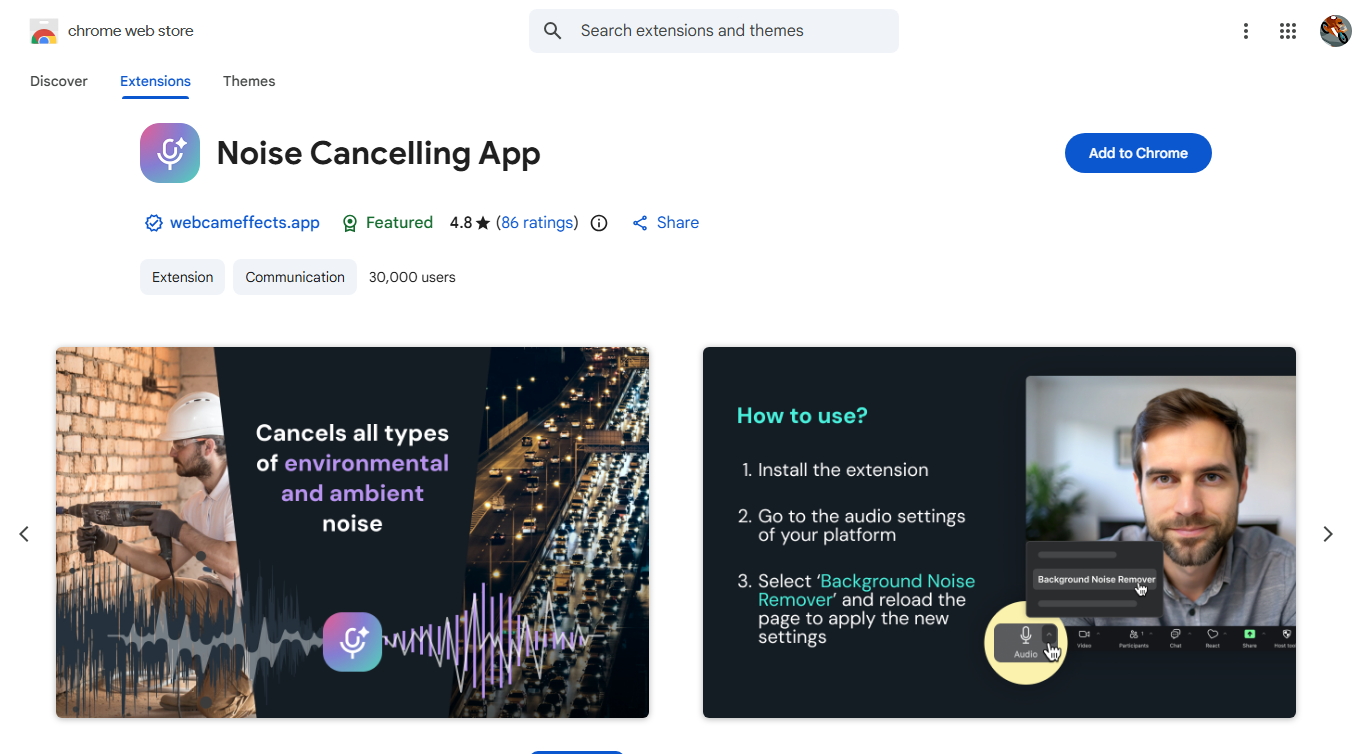
Background noise or a low-quality microphone can impact the clarity of your speech and how it is perceived by other meeting participants. Google Meet has a built-in noise cancellation feature, but it is not available to individual users. The Noise Cancelling App adds a virtual microphone with built-in real-time noise removal to your Chrome browser, which can be used in both Google Meet and any other web application that requires a microphone. Powered by the Audio Effects SDK, it effectively filters out both microphone static and background noise, such as traffic, barking dogs, construction noise, etc.
Main features:
Real-time noise cancellation
Switching between hardware microphones any time
Pricing:
Free, with optional promotional messages
Free, with optional promotional messages
Audio noise reduction–Relax Your Ears
https://chromewebstore.google.com/detail/haalkhejfckbcbheikblbllncbielmke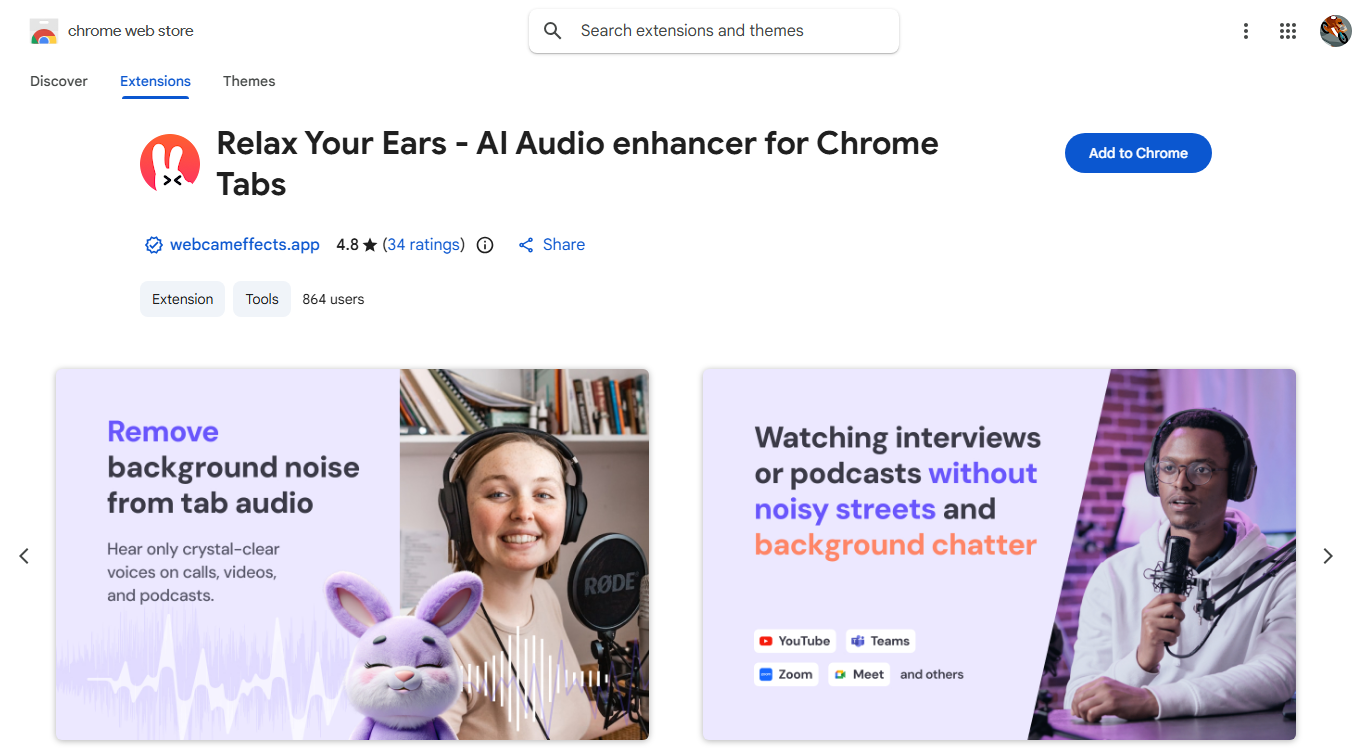
Google Meet does't have a built-in feature to filter incoming audio, yet it is often essential for productive meetings. Inattentive colleagues with poor microphones or noisy environments can be highly distracting and drown out important information. Powered by the Audio Effects SDK, Relax Your Ears audio noise cancellation for any Chrome browser tab, ensuring you hear only your colleagues' voices–not their background noise–during a conference call.
Main features:
Real-time noise cancellation
Can be applied to any browser tab
Pricing:
Free
Free
Record Meetings on Zoom, Microsoft Teams, Google Meet & more
https://chromewebstore.google.com/detail/imaacloilmlcplokcefgoellkocfcaen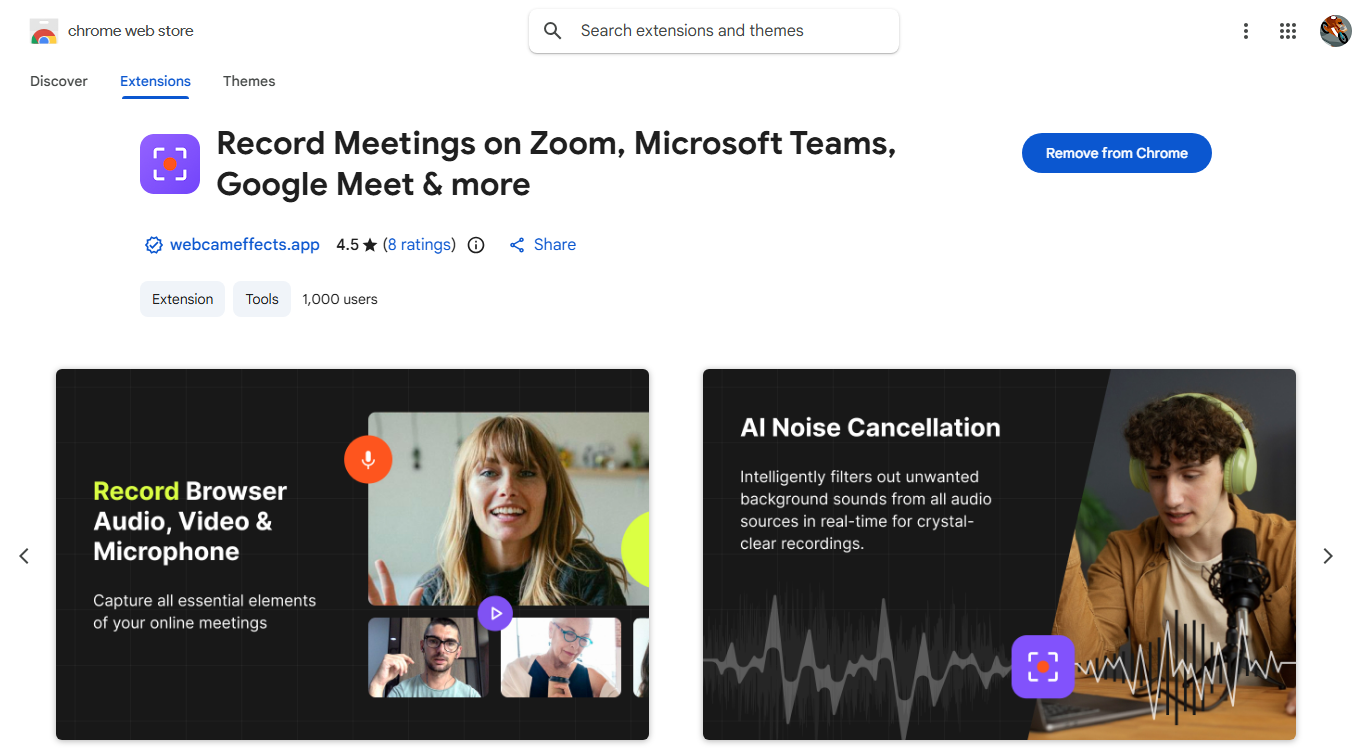
Recording meetings, interviews, and webinars is often necessary for further storage, transcription, and analysis. Making important decisions, preparing presentations and documents, and studying for exams are always easier when you have full information, and recording these events ensures that all the details are captured. This extension lets you record high-quality video and clear audio for later analysis and transcription with just one click.
Main features:
Record from the selected browser tab
Record from the selected microphone
Record incoming audio
Real-time noise cancellation for clearer voice recognition
Pricing:
Free
Free
Improved camera and demonstration of objects – Phone as Webcam
https://chromewebstore.google.com/detail/iklampalacchmkheadnifcgmndgfhdpm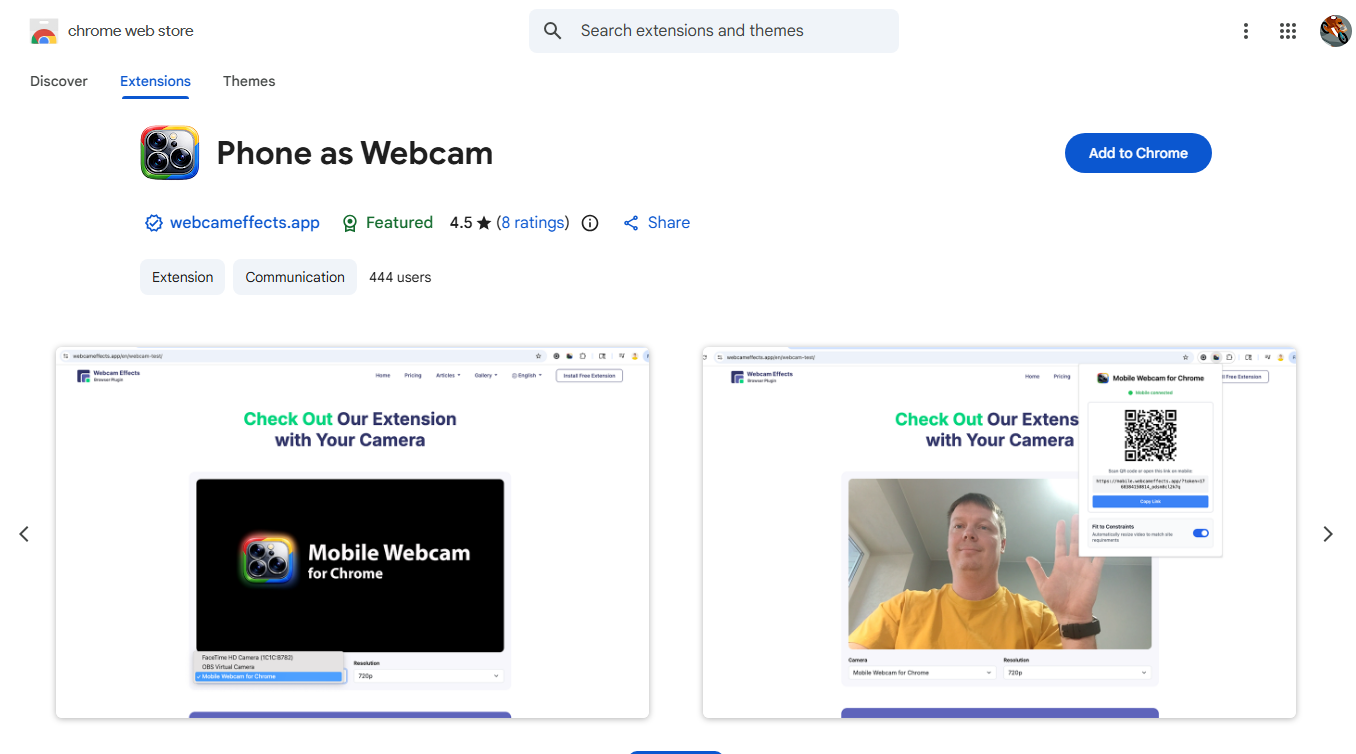
The built-in cameras on most laptops deliver mediocre quality, and some laptops don't have a camera at all – yet having your video on is often essential during meetings, conferences, and interviews. Phone as Cam lets you use either of your phone's cameras as a webcam. With Phone as Cam, you can effortlessly transform your smartphone into a premium webcam using either its front or rear camera. This simple, lightweight Chrome extension not only improves your video quality but also lets you demonstrate objects or locations from any angle. It requires no installation on your phone and uses standard browser features.
Main features:
Using your phone's camera as a webcam
The ability to switch between your phone's cameras at any time
Pricing:
Free
Free
Note:
Your phone and computer must be connected to the same Wi-Fi network
Your phone and computer must be connected to the same Wi-Fi network
Enhanced capabilities and convenience – Google Meet Enhancement Suite
https://chromewebstore.google.com/detail/ljojmlmdapmnibgflmmminacbjebjpno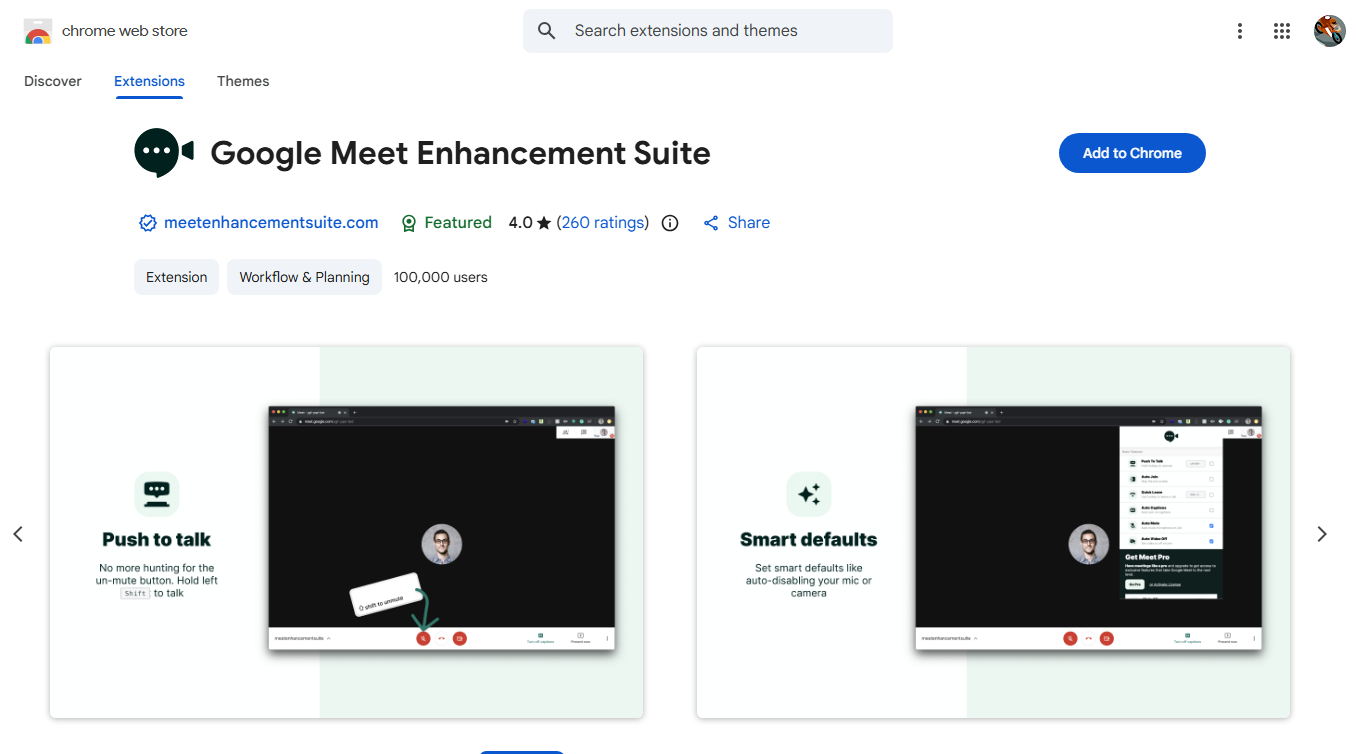
A comprehensive set of minor improvements that allow you to automate certain actions and make some Google Meet features more user-friendly. Some of these improvements are available only in the paid Pro version, while others require a Google Workspace subscription. However, even the free features can significantly simplify the process of hosting a meeting.
Most interesting Free features:
Push-to-Talk feature
Automatic conference join
Camera and microphone automatically muted upon joining
Automatic captions
Quick exit
Advanced Pro features:
Recording and transcription
Automatically admit or reject participants
Dark mode
Meeting timer
Sort participant list
Attendance tracking
Pricing:
Free–with blocked Pro features
Subscription–from $4, with free trial
Free–with blocked Pro features
Subscription–from $4, with free trial
Managing large conferences – Google Meet Breakout
https://chromewebstore.google.com/detail/kogfdlbehkaeoafmgaecphlnhohpabig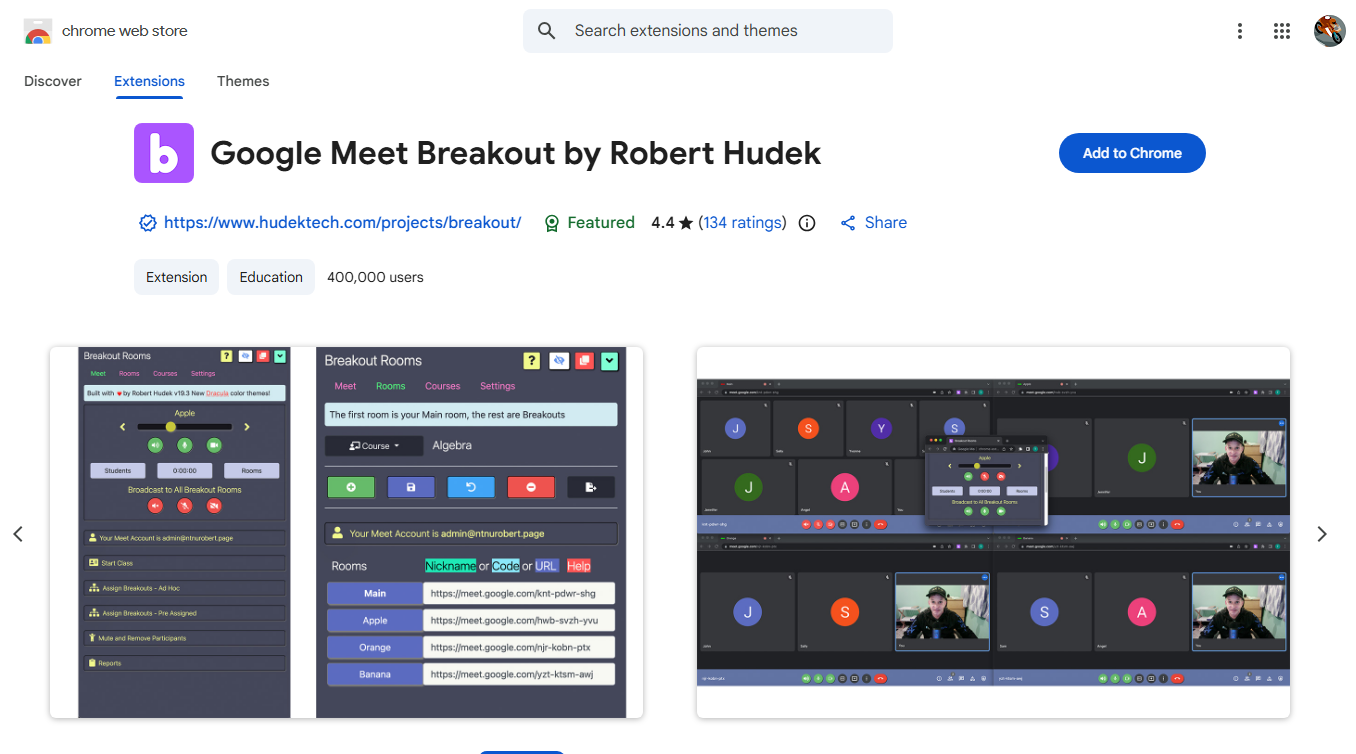
This is one of the most powerful extensions for organizing large conferences and online classes. It's the perfect replacement for the Breakout Rooms feature included in the paid Google Workspace subscription and has an integration with Google Classroom. This extension is completely free and allows organizers to quickly create the necessary number of rooms, assign participants to them, and monitor all participants.
Main features:
Create rooms at any time, with the ability to name them and identify them by color, along with codes and links to Google Meet conferences
Monitor the list of rooms and all participants in them
Join any room and control the camera, microphone, and speakers
Pricing:
Free
Free
Managing presence and participation – Google Meet Attendance List
https://chromewebstore.google.com/detail/appcnhiefcidclcdjeahgklghghihfok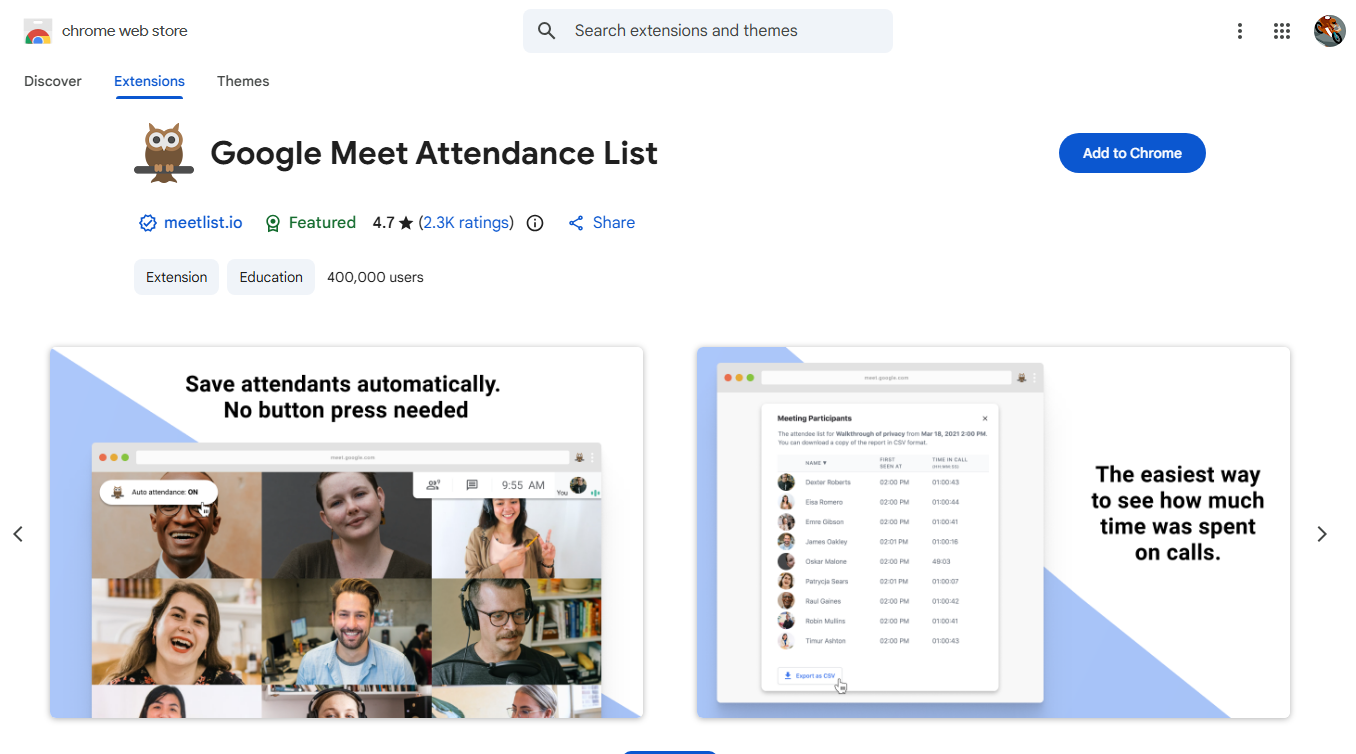
A simple and lightweight extension that nevertheless performs an important function–it reliably and efficiently tracks participant attendance.
Main features:
Automatically generate and save a list of participants
Track each participant's start time and duration of attendance
A toolbar for viewing meeting history and seamless integration with the Google Meet interface
Pricing:
Free
Free
Extending interaction – Annotate: Web Annotations with Screen Sharing
https://chromewebstore.google.com/detail/gdojjgflncpbcfmenbkndfhoamlhajmf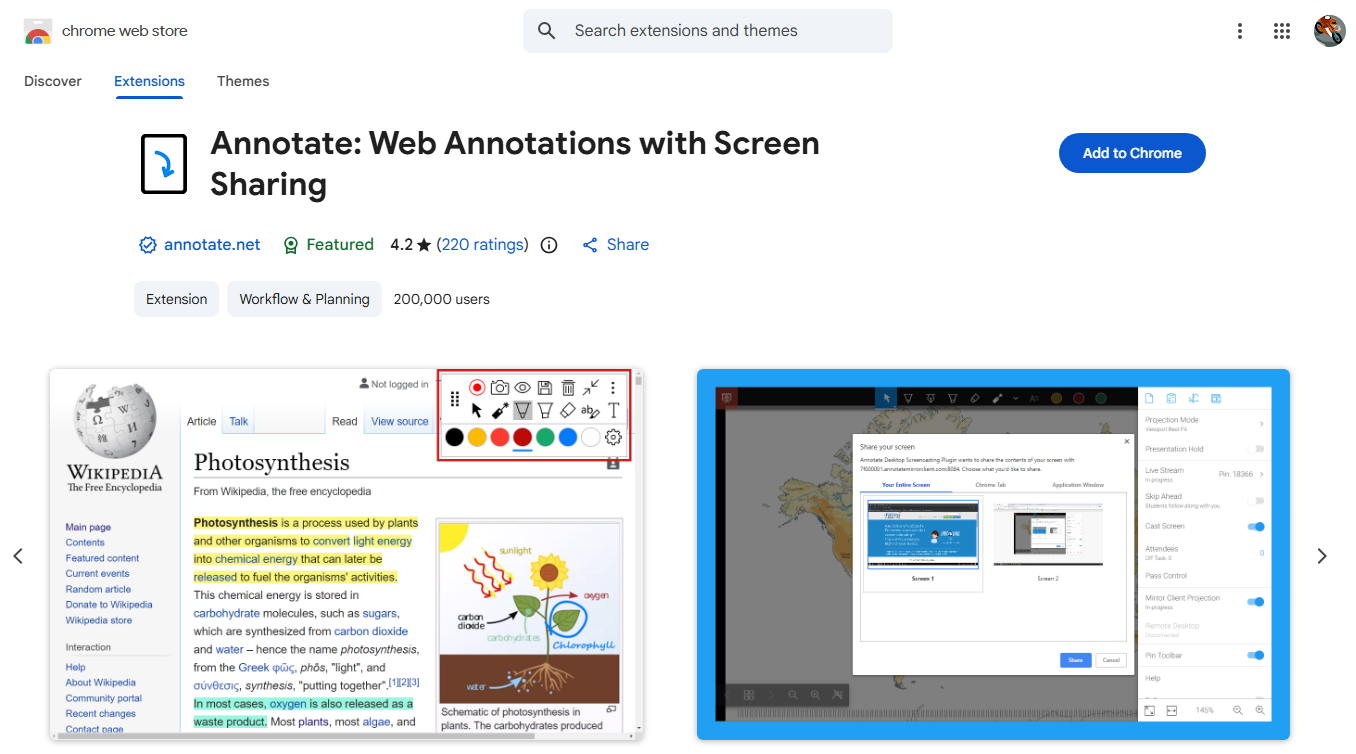
This is a great extension for anyone who shares their screen during meetings. This feature-rich extension lets you clearly highlight and emphasize important and interesting parts of your presentations. This visual clarity often saves a lot of time on explanations and allows you to focus on the details that really matter. It's important to note that even the basic features of the free version will allow you to successfully focus on presenting visual information.
Main features:
Annotate web pages, PDFs, slides, and documents using a pen and highlighter
Track the position of annotations while scrolling
Collaborative annotation
Save annotations
Pricing:
Free–with basic essential features
Paid–$7,99 for full access, includes sharing and saving
Free–with basic essential features
Paid–$7,99 for full access, includes sharing and saving
Installing and Managing Extensions
Some of these extensions are designed exclusively for Google Meet, but all of them are Chrome browser extensions.
Installing Chrome extensions is very simple. Just open the Chrome Web Store, type the name of the extension you need into the search bar, click on it, then click the "Add to Chrome" button on the extension's page and confirm the installation of the extension to your browser. Sometimes, after installation, depending on the extension, you may need to refresh the Google Meet page, sign in to your extension account, and grant permissions to access your data or devices.
Managing installed extensions is also straightforward. If you have at least one extension added to your browser, Chrome will display a puzzle piece icon to the right of the address bar. Clicking this icon opens a list of your extensions, where you can pin your favorite tools for quick access, remove an extension entirely, or open the full extension management page.
Extension security and privacy
In general, the extensions available in the Chrome Web Store are safe because Google reviews them before publication, but we always recommend checking reviews and using extensions from trusted publishers.
All the extensions featured in this article work locally, keeping your data secure without sending it to third-party servers. However, some features, such as account authentication or sharing live annotations, may require sending your data to Google's servers.